
PlantUML Newpage Not Working? Rendering and Output Fixes
If PlantUML newpage appears not to work in OnUML, the reason is the current preview model: each PlantUML diagram tab displays one rendered image. OnUML does not currently provide next-page controls or download a group of images from one newpage source.
The PlantUML language can use newpage to split supported sequence diagrams, but that does not automatically make every online editor a multipage viewer. In OnUML, the reliable approach is to place each reader-facing page or scenario in its own diagram tab.
Key Takeaways
- OnUML currently previews and exports one rendered image per PlantUML diagram tab.
newpagedoes not create page navigation in the OnUML preview.- PNG and SVG actions export the image currently exposed by the preview, not a multipage package.
- Use multiple diagram tabs when every section must be visible, editable, shareable, and downloadable in OnUML.
- Keep one sequence diagram focused on one reader task whenever possible.
Quick Diagnosis
| What you see in OnUML | Why it happens | Recommended action |
|---|---|---|
| Only the first section is visible | The preview exposes one rendered image | Split the source into multiple diagram tabs |
| PNG or SVG contains only one section | Export follows the current single-image preview | Export each tab separately |
Adding newpage does not add controls | OnUML has no PlantUML page navigator | Use tabs with clear titles |
| One diagram is too tall | The source contains too many scenarios | Separate scenarios or use ref blocks |
| You need one PDF document | OnUML exports PNG and SVG, not PDF | Export each tab as SVG and assemble the document elsewhere |
What newpage Means
In PlantUML sequence-diagram syntax, newpage marks a split between sections. A minimal source looks like this:
@startuml
title Sign-in flow
actor User
participant App

User -> App: Submit credentials
App --> User: Authentication result

newpage Recovery flow

User -> App: Request password reset
App --> User: Send reset instructions
@enduml
This syntax describes multiple rendered pages at the PlantUML language level. It does not define how an editor must display, navigate, name, or download those pages.
OnUML's PlantUML preview requests and displays a single image for each diagram tab. As a result, later newpage sections are not exposed through the current interface.
Recommended OnUML Solution: Use Multiple Diagram Tabs
Instead of keeping both scenarios behind one newpage, create two PlantUML diagram tabs in the full OnUML editor. The two previews below are the sources to paste into those tabs; the blog renders them separately and does not reproduce the editor's tab bar.
- Open the full editor and choose PlantUML mode.
- In the diagram tab bar below the preview, double-click the current tab and rename it Sign-in flow.
- Replace its code with the Tab 1 source below.
- Click the + button at the right end of the tab bar. Its tooltip reads Add diagram.
- Double-click the new tab, rename it Recovery flow, and paste the Tab 2 source into it.
- Click each tab to switch between the two diagrams and verify its preview.
| OnUML diagram tab | Source to paste |
|---|---|
Sign-in flow | Tab 1 code block |
Recovery flow | Tab 2 code block |
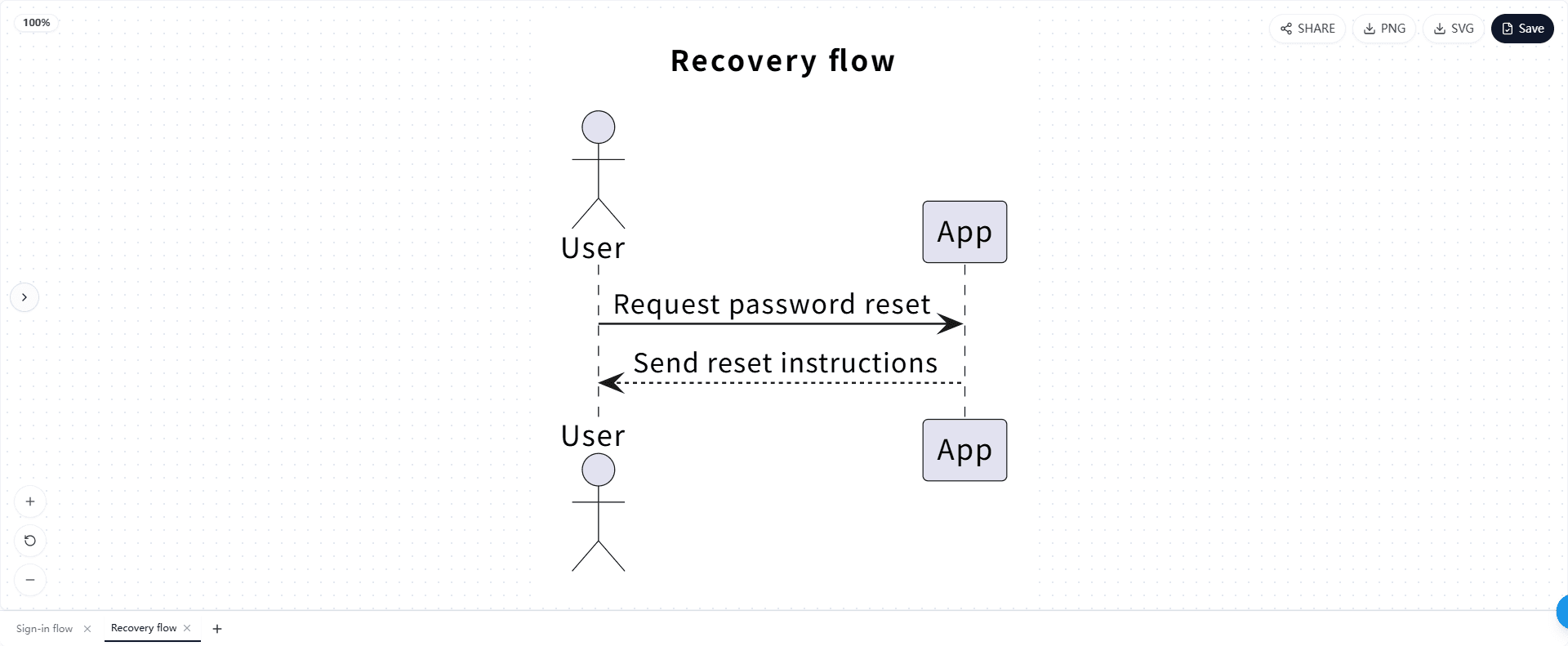
Tab 1: Sign-in flow
@startuml
title Sign-in flow
actor User
participant App

User -> App: Submit credentials
App --> User: Authentication result
@enduml
Tab 2: Recovery flow
@startuml
title Recovery flow
actor User
participant App

User -> App: Request password reset
App --> User: Send reset instructions
@enduml
This structure works better in OnUML because each diagram can be:
- Previewed directly
- Renamed with a clear tab title
- Edited independently
- Downloaded as PNG or SVG
- Included in a saved project
- Shared as part of the project workflow
It also makes each image easier to embed in documentation because its purpose is clear without relying on page order.
Step-by-Step Fix in OnUML
- Open the source in the full OnUML editor.
- Choose PlantUML mode.
- Double-click the current tab in the tab bar below the preview, then enter a descriptive diagram name.
- Copy the content before the first
newpageinto that tab and give it its own@startumland@enduml. - Click the + (Add diagram) button at the right end of the tab bar.
- Double-click the new tab to rename it, then move the next section into it.
- Repeat for any remaining sections.
- Click each tab to switch diagrams and verify every preview.
- Download PNG or SVG from each tab as needed.
- Sign in and select Save if the group should remain as an OnUML project.
Do not keep newpage inside the separated tabs unless another PlantUML environment also consumes the same source and requires it.
When to Keep One Diagram
Splitting is not always necessary. Keep one sequence diagram when the messages form one short, continuous interaction that readers should understand as a single timeline.
If the diagram is long but still represents one scenario, try these options before splitting:
- Remove implementation details that do not affect the reader's decision.
- Use
refto summarize a secondary interaction. - Replace repeated low-level messages with one meaningful message.
- Move error recovery into a separate diagram.
- Keep participant labels short and consistent.
Example with a reference:
@startuml
actor User
participant App
participant Identity

User -> App: Sign in
App -> Identity: Verify credentials

ref over App, Identity
Token validation and account checks
end ref

Identity --> App: Authentication result
App --> User: Open dashboard
@enduml
The ref block preserves context without requiring another rendered page.
Exporting the Result
After splitting the source into tabs:
- Open the first tab and verify its preview.
- Select PNG for a conventional image or SVG for scalable documentation.
- Repeat for every tab.
- Rename the downloaded files so their order is clear, for example:
01-sign-in-flow.svg02-recovery-flow.svg
The PlantUML export guide explains the difference between OnUML projects, browser drafts, PNG/SVG downloads, and public sharing.
Common Mistakes
Expecting newpage to add UI controls
PlantUML syntax cannot add next/previous buttons to the OnUML interface. Navigation is an editor feature.
Exporting before checking every tab
Each tab has its own current preview. Open and verify each one before downloading.
Splitting in the middle of a required interaction
Keep messages together when readers need the complete order to understand the behavior. Split by scenario or responsibility, not simply by line count.
Treating a share link as a multipage PDF
A share link provides browser access to the shared diagram content. It does not assemble PlantUML pages into a PDF.
Keeping important work only as an unsaved draft
Browser-local drafts are convenient but not permanent backups. Save the OnUML project and retain the source separately when the diagram matters.
Frequently Asked Questions
Does OnUML support PlantUML newpage navigation?
Not currently. The PlantUML preview displays one rendered image per diagram tab and does not expose next/previous page controls.
Why do I only see the first page?
The source may describe multiple PlantUML pages, but OnUML's current preview exposes one image. Split the sections into separate diagram tabs.
Will PNG or SVG download every newpage section?
No. The current export action downloads the image available in the active preview. Export each separated tab individually.
Can I keep the pages together in one OnUML project?
Yes. Put each section in its own diagram tab, then save the project. This preserves the relationship between the diagrams without hiding sections behind newpage.
Can OnUML export the pages as one PDF?
Not directly. Export the tabs as SVG or PNG and assemble them in the document tool that will produce the PDF.
Next Steps
- Open the full OnUML editor and split the sequence into diagram tabs.
- Use the PlantUML examples guide to choose a smaller diagram structure.
- Follow the PlantUML export guide to download each tab as PNG or SVG.
- Read the PlantUML WYSIWYG guide to understand why PlantUML preview and direct canvas editing are different workflows.
In OnUML, multiple diagram tabs are the practical replacement for a newpage workflow: every section remains visible, editable, downloadable, and easier to maintain.