
How to Export PlantUML as PNG or SVG in OnUML
To export or continue editing a PlantUML diagram in OnUML, decide which result you need:
- Download the rendered diagram directly from OnUML as PNG or SVG.
- Save the complete OnUML project when you want to continue editing it online.
- Create a public share link when another person only needs to view the diagram.
- Keep a temporary browser draft while you work in the current browser.
OnUML provides live PlantUML preview, PNG and SVG downloads, browser-local drafts, cloud project saving, and public sharing. It does not currently export PlantUML diagrams directly as PDF.
To generate a PlantUML preview or export, OnUML sends the encoded source to its configured PlantUML rendering service. Do not enter passwords, API keys, access tokens, private endpoints, or confidential architecture details in PlantUML source.
Key Takeaways
- Use the quick PlantUML editor when you want to paste source, verify the preview, and download PNG or SVG immediately.
- Use the full OnUML editor when you need AI generation, syntax repair, project saving, multiple diagram tabs, or sharing.
- PlantUML source remains editable in the OnUML editor. PNG and SVG are rendered outputs.
- An unsaved editor draft is stored in the current browser and should not be treated as a permanent backup.
- Sign in and save a project when you want OnUML to keep the diagram in the cloud.
Choose the Right OnUML Workflow
| What you need | Use this OnUML action | Result |
|---|---|---|
| Put the diagram in chat, an issue, or a document | Select PNG | plantuml-diagram.png |
| Keep text and lines sharp at different sizes | Select SVG | An SVG diagram file |
| Continue editing in OnUML from another session | Sign in and select Save | A cloud project |
| Let another person view the current diagram | Select SHARE | A public share link |
| Keep a temporary draft in the same browser | Continue working without saving a project | A browser-local draft |
Option 1: Download PNG or SVG from the Quick Editor
The quickest workflow does not require a local Java or PlantUML installation.
- Open the OnUML PlantUML online editor.
- Replace the example in the PlantUML source panel with your own source.
- Wait for the Diagram preview panel to update.
- Select Download PNG or Download SVG.
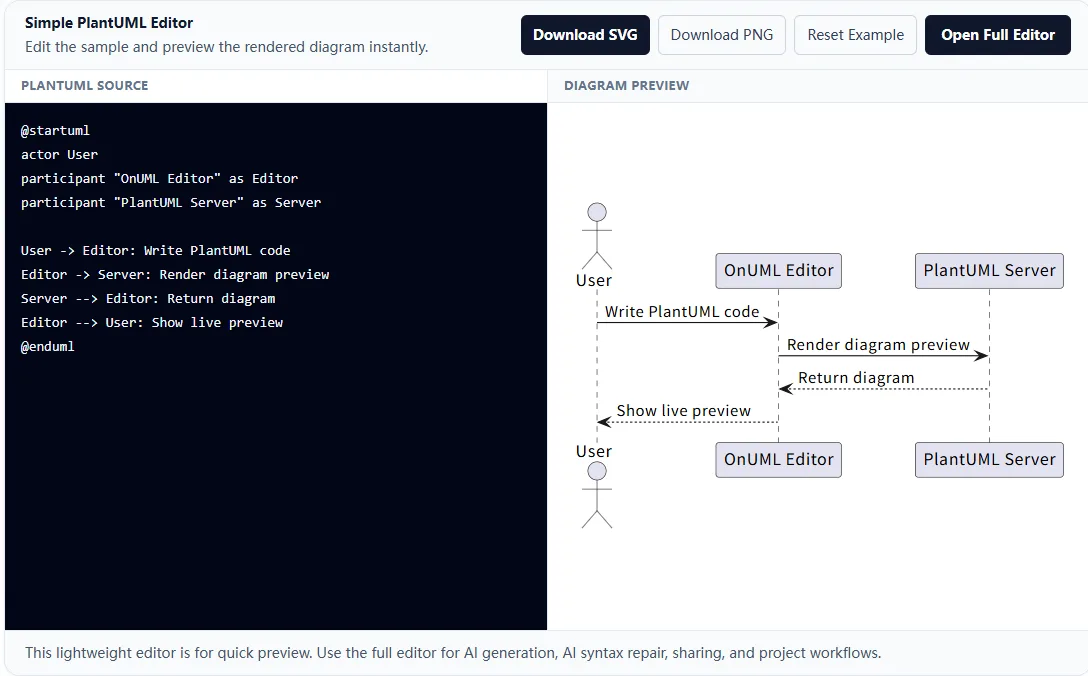
The editor waits briefly after source changes before updating the preview. If the download buttons are disabled, wait for the preview to finish or correct the reported PlantUML error.
Use PNG when broad image compatibility matters. Use SVG for websites, documentation, zooming, or any destination where the diagram may be resized.
Option 2: Export from the Full OnUML Editor
Use the full editor when the diagram is part of a larger workflow.
- Open the full OnUML editor.
- Choose PlantUML as the diagram type.
- Enter a prompt or edit the PlantUML source.
- Confirm that the rendered preview is correct.
- Select PNG or SVG in the preview toolbar.
AI syntax repair is an authenticated, credit-based feature. Manual PlantUML editing and preview do not require you to run a local repair tool.
For PlantUML PNG export, OnUML requests a rendered PNG and places it on a white background. If the remote PNG request fails, the editor attempts to create the PNG from the current SVG preview instead.
SVG export downloads the current rendered PlantUML preview. Because SVG is vector-based, it is generally the better choice for technical documentation and responsive pages.
How OnUML Drafts and Project Saving Differ
The full editor keeps the current draft in browser storage while you work. This helps restore work in the same browser, but browser storage can be cleared and does not replace a durable cloud project.
For longer-lived work:
- Sign in to OnUML.
- Build or edit the PlantUML diagram in the full editor.
- Select Save.
- Give the project a useful title.
- Continue editing the saved project.
After a project exists, OnUML automatically saves subsequent diagram changes and shows the cloud-save state in the editor. If autosave reports a failure or conflict, resolve that status before closing the page.
Choose the appropriate persistence level for the diagram:
- Use a browser draft for temporary work in the current browser.
- Save the project in OnUML for continued online editing, AI workflows, and sharing.
How to Share Without Sending a File
If another person only needs to view the diagram, select SHARE in the full editor. OnUML creates a public link for the current diagram and copies it to the clipboard when browser permissions allow.
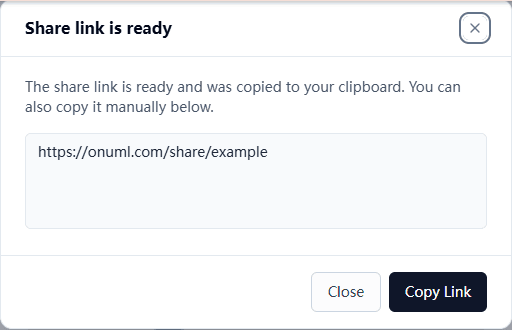
Sharing is different from saving:
- Save keeps an editable project in your OnUML workspace.
- SHARE creates a public viewing link.
- PNG/SVG downloads a rendered file.
Anyone with a public share link may be able to view its diagram content. Review the source and rendered result before creating the link.
What About PDF?
OnUML currently exports PlantUML diagrams directly as PNG or SVG, not PDF.
If the final document must be a PDF, download SVG for the best scaling, place it in your documentation or presentation tool, and export that document as PDF. This also gives you control over page size, margins, captions, and surrounding text.
If you specifically require a PlantUML-generated PDF rather than a document containing the exported diagram, that requires a separate tool outside OnUML.
Common Problems
The download buttons are disabled
Make sure the source is not empty, wait for the preview to update, and fix any PlantUML rendering error before downloading.
The downloaded image does not include my latest edit
Wait until the preview shows the latest source before selecting PNG or SVG. The quick editor intentionally blocks export while the preview is still updating.
I downloaded PNG but cannot edit the PlantUML source
PNG is a rendered image. Return to the current editor draft or open the saved OnUML project to continue editing the PlantUML source.
My unsaved project disappeared
Unsaved drafts depend on browser-local storage. Clearing browser data, changing browsers, or using another device can make that draft unavailable. Save important work as an OnUML project.
The SVG opens in a browser instead of an image application
That is normal. SVG is an XML-based vector image format and browsers can display it directly. It can also be embedded in web pages and many documentation tools.
Frequently Asked Questions
Can OnUML keep a PlantUML diagram editable?
Yes. Use the full editor and save the diagram as an OnUML project. You can reopen the project and continue editing its PlantUML source.
Can I download both PNG and SVG?
Yes. The quick PlantUML editor and the full editor both provide PNG and SVG download actions for a valid rendered diagram.
Do I need to install Java?
No, not for the OnUML workflow described here. Rendering and downloads are handled through the web editor.
Do I need an account to preview and export?
You can use the quick PlantUML editor for editing, previewing, and PNG/SVG downloads. Sign in when you want to save a durable cloud project and continue managing it in OnUML.
Is a browser draft the same as a saved project?
No. A browser draft is local convenience storage. A saved OnUML project is the appropriate choice for persistent cloud editing.
Which format should I use for documentation?
Choose SVG when the documentation system accepts it because it remains sharp when resized. Choose PNG when the destination does not support SVG or requires a conventional raster image.
Next Steps
- Open the quick PlantUML editor to paste source and download PNG or SVG.
- Open the full OnUML editor for AI generation, project saving, and public sharing.
- Browse the PlantUML examples guide for source you can copy and adapt.
- Use the PlantUML newpage troubleshooting guide when a multi-page sequence diagram produces unexpected output.
Keep working in the editor when you need future changes, export PNG or SVG when you need a rendered asset, and save an OnUML project when the diagram is part of an ongoing online workflow.